
blog · Artikel auf Englisch
Snotra 1.20.1 to 1.22.1: the agent asks for its tools and reads its own manual
Five releases in five days. Snotra Agent now asks before switching on a tool it needs, answers questions about itself from its own manual, keeps a server open for one folder, and runs Git over SSH inside the sandbox on macOS.
Since the last round-up on Sunday, five more releases have come out, 1.20.1 to 1.22.1. This time the article is ordered by what matters rather than by version: three changes first that alter how you work with Snotra Agent, then the smaller things, then the fixes. Each item names the release it came with.
The three, in short: the model can now ask you to switch on a skill or a tool it needs, instead of telling you it cannot do something. It looks up answers about Snotra in the manual that ships with the app. And the sandbox learned two things developers will notice every day: it can keep a server open for one folder, and on macOS git over SSH works from inside it.
The model asks to switch something on (1.21.0)
Every tool you switched off in the settings is missing from the model’s tool list. Until now, a model that missed one read the gap as a limit of language models — “I can’t open web pages” — even though the tool was one click away. Since 1.20 the model could at least read the configuration. Now it can do something about it, and only with your consent.
When a skill or tool that is off would help with what you asked, the model can propose switching it on for this chat only. Snotra checks the proposal against its own catalogue first, then shows a card: the name with Snotra’s description of it, the risk class of a tool or where a skill comes from, and, folded away, the model’s reason in its own words.
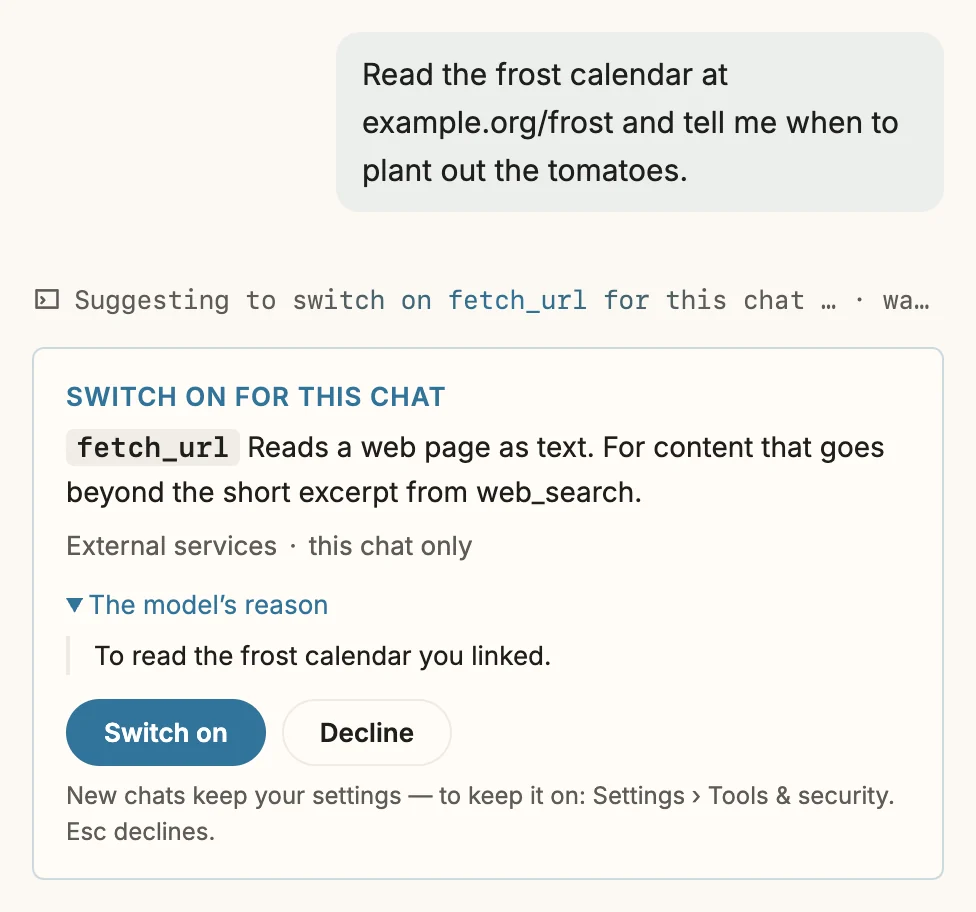
fetch_url, which is off. The description is Snotra’s; only the reason comes from the model.- Switch on and the run carries on right away with the new tool list. Decline, or Esc, and the same proposal does not come back in this chat. The model can also propose switching something off, for example when you asked it to work from your documents only.
- The change belongs to the chat. It survives switching to another chat and a restart, and a new chat starts from your settings again. The skills pill marks it this chat only.
- A tool switched on this way is still a tool like any other: in Smart mode it asks before each call that needs it. What needs setting up first — a key, a program, the switch for Python or shell commands — cannot be proposed at all; it stays in the settings.
A small change in the system prompt goes with it: while the configuration tool is offered, the model is told to check it before telling you that something is not possible. It is one sentence, not a dump of the whole configuration, so it costs almost nothing in context. The manual has the details under When the model suggests switching something on.
Questions about Snotra are answered from the manual (1.22.0)
Ask the chat how something in Snotra works, and it no longer answers from a built-in overview, or, where that runs out, from whatever its training data says about an app it has likely never seen. It has two new tools, search_manual and read_manual_page, that read the manual bundled with the app: the version you have installed, in the language of your interface, without a network request to look it up.
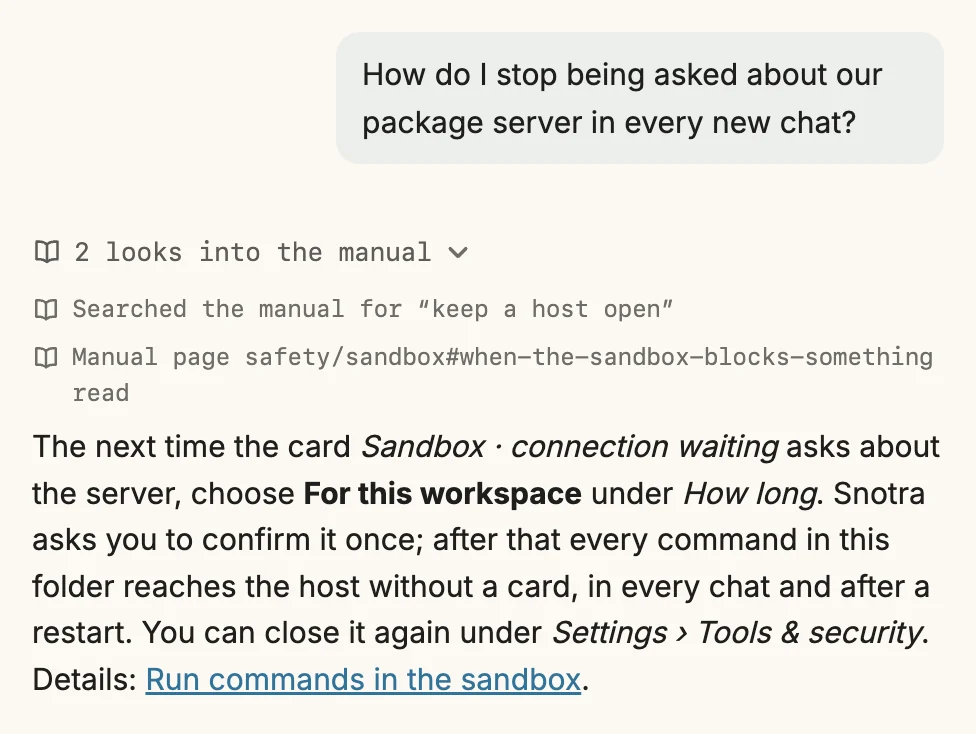
Both tools only read, need no open folder and never show a card. In the tool log they appear with a book icon. A link to docs.snotra-ai.dev in an answer opens the bundled page at that section in the help window; only a page your version does not have goes to the browser. The built-in overview skill now points to the manual for anything detailed, and says what to do when the two disagree: the manual is right.
The sandbox, for daily work with servers
Keep a host open for one folder (1.22.0)
When a command in the sandbox connects to a host its call did not name, the connection waits and a card asks you. So far the answer could hold for one run or for one session. For a server a project talks to every day — a package index, a Git remote, an internal API — that meant the same card in every new chat. The card now has a third duration, For this workspace.
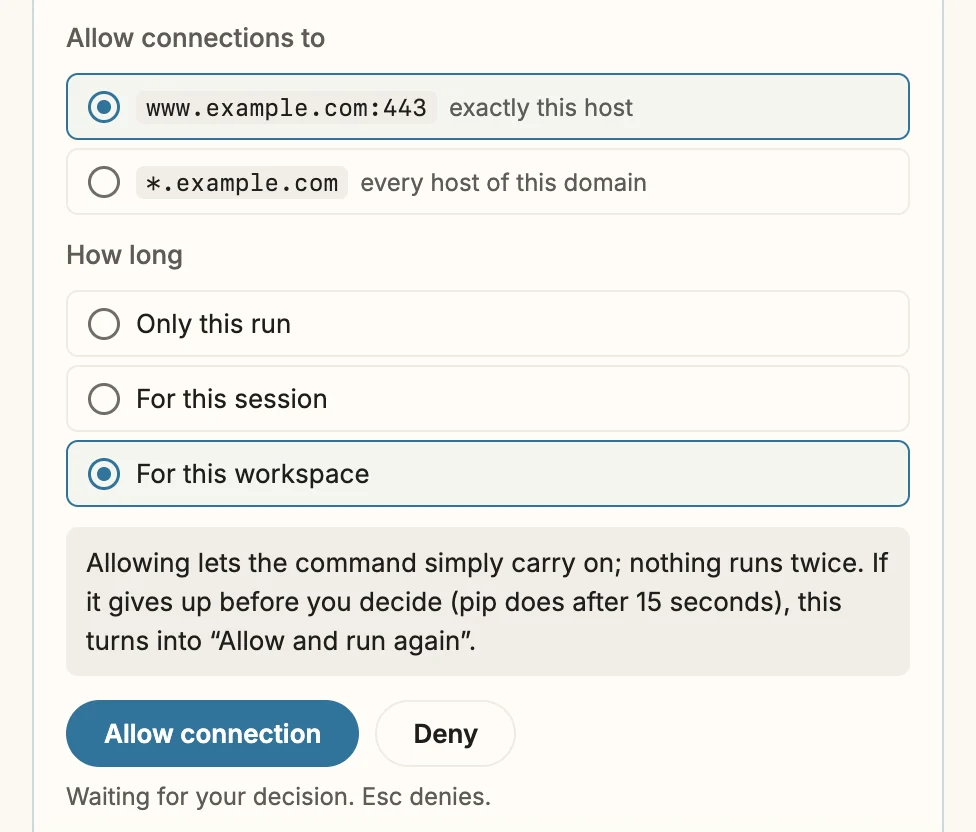
Because the answer outlives the chat, the operating system asks you to confirm it, naming the host and the folder. From then on every command and Python run in that folder reaches the host, in every chat and mode and after a restart; every other folder is unaffected, and everything else stays inside the sandbox. The hosts are kept in the signed tool policy, at most ten per folder, and only where Snotra can store them encrypted. They are listed under Settings › Tools & security in the row Execute, where each one can be closed again. In Always ask the choice is not offered.
Git over SSH inside the sandbox on macOS (1.21.1)
git fetch, pull and push against an SSH remote used to fail inside the sandbox with This proxy requires authentication. The cause was a detail of how the sandbox routes Git’s SSH: through its proxy with nc, but the proxy wants a per-session credential, and the nc that ships with macOS cannot send one for SOCKS5. Snotra now gives Git a small helper that opens the tunnel with an authenticated HTTP CONNECT instead. It is a Perl script, since /usr/bin/perl comes with macOS and the app cannot run itself as Node.
The connection goes through the proxy’s normal check, so the card above and program allowances apply as for any other host. SSH may read known_hosts, its config and the public keys; the private keys stay closed, and the ssh-agent signs. Two things are needed: the host in known_hosts (connect once from a terminal), and your key in the agent. When either is missing, the error the model sees says which. On Linux, signing in from inside the sandbox is not possible yet; the HTTPS address of the repository works. The manual has a section on it: Use Git over SSH.
One line after a sandbox question (1.20.1)
After a sandbox card was answered, the decided card and the box under the tool steps said the same thing twice. Now the card gives way to the box once the call is through, and the box folds to one line — what was asked, your answer and the step, for example The sandbox blocked 1 resource · allowed · Command “…” run. A click opens everything the card said. A box with something left unanswered stays open. Decided approval cards also no longer vanish when you ask the next question; they stay until you open another chat.
Also new
- Make a folder’s skill global (1.22.0). Snotra writes new skills into the open folder only. A skill you want everywhere no longer has to be moved by hand: in Settings › Skills, unfold it and click Make global…. Snotra names both folders before it moves anything, refuses a name that is already taken instead of overwriting it, and carries over whether the skill was on. No tool can do this, so the model still never writes outside the open folder.
- Symbolic links in the file tree (1.22.0). A link keeps its target’s icon with a small arrow, and the tooltip names the target. A folder link inside the open folder opens like a folder; one that points outside it is marked and stays closed; a link whose target is gone is drawn dashed in a warning colour. Handy in projects where
.claude/skillspoints to.agents/skills. The model’s own file tools still do not follow links.
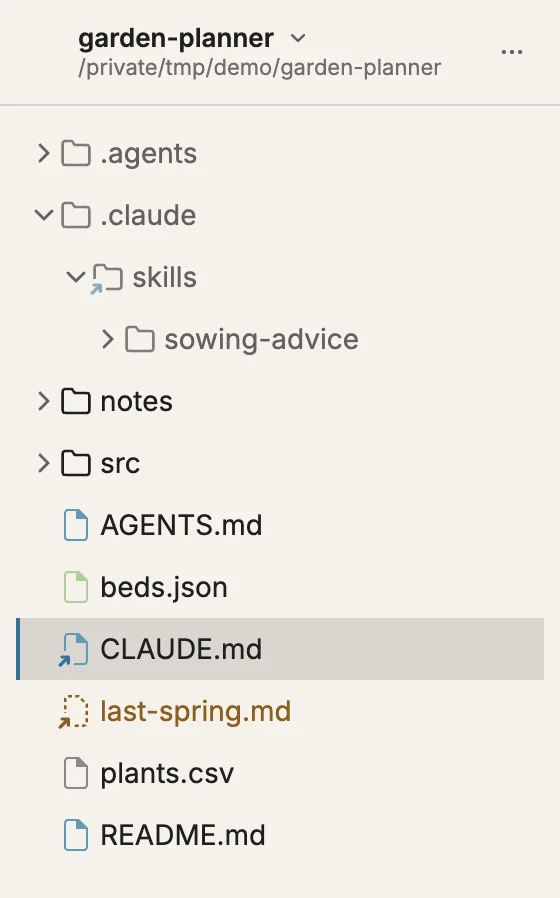
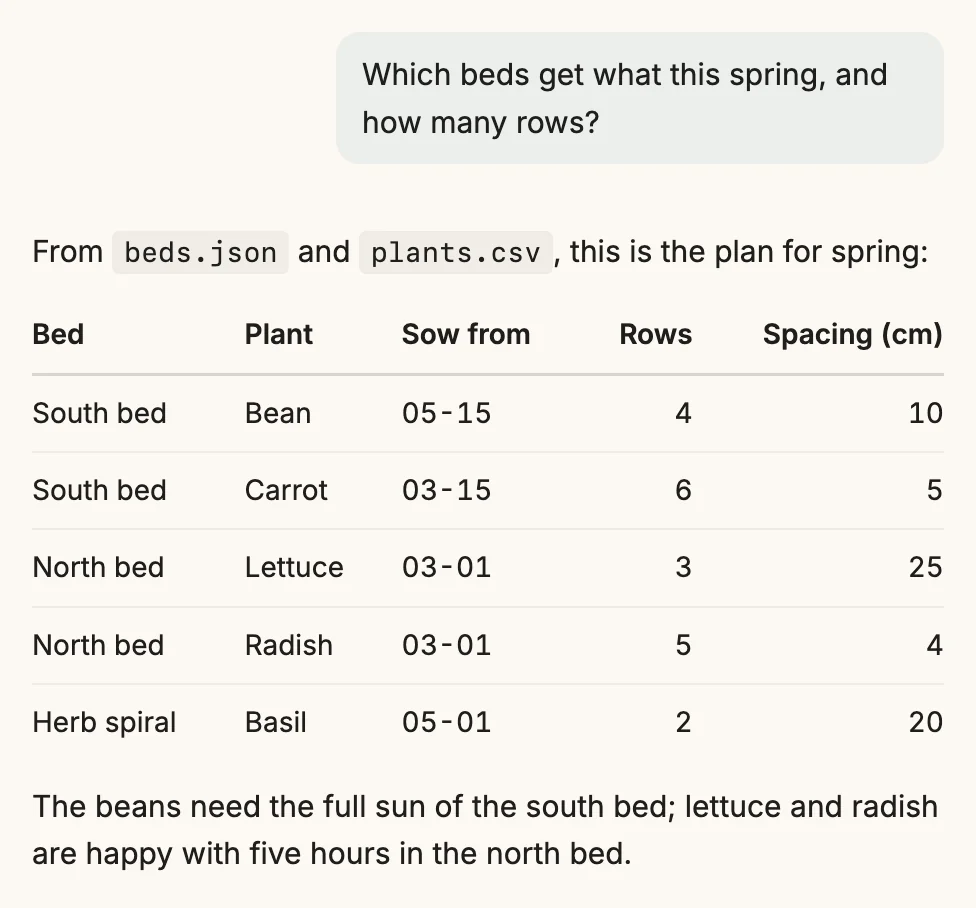
.claude/skills to a folder, CLAUDE.md to AGENTS.md, and one whose target is gone.- Calmer tables in answers (1.22.1). No cell grid any more: a thin line between rows, a stronger one under the head, columns of numbers aligned right unless the Markdown says otherwise. In the narrow chat panel a wide table scrolls inside its own frame instead of squeezing each column down to single letters.
- A limit for the answer length of local models (1.21.1). Every OpenAI-compatible entry in Settings › Models — llama.cpp, LM Studio, Ollama’s OpenAI endpoint, vLLM and the like — has an optional field Max output tokens. Empty, nothing is sent and everything behaves as before; with a value, it goes out with every request. When an answer is cut off at the limit, the message now names the setting.
- A clear word when GitHub limits the update check (1.22.0). Behind a company network or VPN, many people share GitHub’s limit of 60 anonymous requests an hour. The update dialog used to say No new version with an HTTP 403. It now says the check failed, that GitHub is limiting requests from your network, and when to try again, with a button to the release page.
- The title bar belongs to the folder (1.21.1). The wordmark and the version moved to the right, next to the chat and history switches; on the left there is only the open folder. The folder name no longer jumps when the sandbox shield appears after start-up.
Fixes
- A generated image survives the next message (1.22.1). After an image was generated, the next message redrew the chat, and the image turned into a broken frame. The same hit images from the folder shown in an answer.
- A message that fails to send comes back (1.21.0). If sending threw an error after the input had been emptied, the text was simply gone. Now text and images go back into the input, and Not sent appears where the token counter is.
- A failed update cleans up after itself (1.21.0). Each failed attempt left a folder of about 26 MB next to the app, one more with every Try again. Inside Electron an
.asararchive looks like a folder, so the cleanup walked into it instead of deleting it. Leftovers from earlier attempts are now removed before the next one.
Under the hood
Most of 1.21.0 is work you will not see: about a dozen pull requests that take guessed waits out of the test suite. Tests that slept for a fixed time and hoped the app was done now wait for the event they are about; the end-to-end tests no longer touch the developer’s keychain; an Excel fixture that took 9.6 seconds to build now takes 0.4. The suite stands at a little over 4,100 unit tests and 31 end-to-end tests that drive the real app, and it fails far less often under load — which matters for a project that ships several releases a week.
Getting it
Snotra checks for a newer version at startup and walks you through the update, one confirmed step at a time. Otherwise, download it for macOS, Windows or Linux. Every release has its notes on GitHub, and the Discussions are open for anything that doesn't work the way this article says.