
blog · Artikel auf Englisch
Snotra 1.18.1 to 1.20: a manual in the app, a skills pill, and dictation you can watch
Four releases in three days. Snotra Agent now carries its own searchable manual, shows which skills and tools a chat has, writes your dictation into the input while you speak, and folds approval cards you have already answered.
Since the last round-up on Friday, four more releases have come out. This is the short version again: release by release, only what you will notice in daily use. The two that matter most are 1.18.2, which puts the user manual inside the app, and 1.20.0, which makes a chat’s skills and tools visible and lets you watch your dictation appear.
1.18.1: zoom for Markdown, a first-run fix
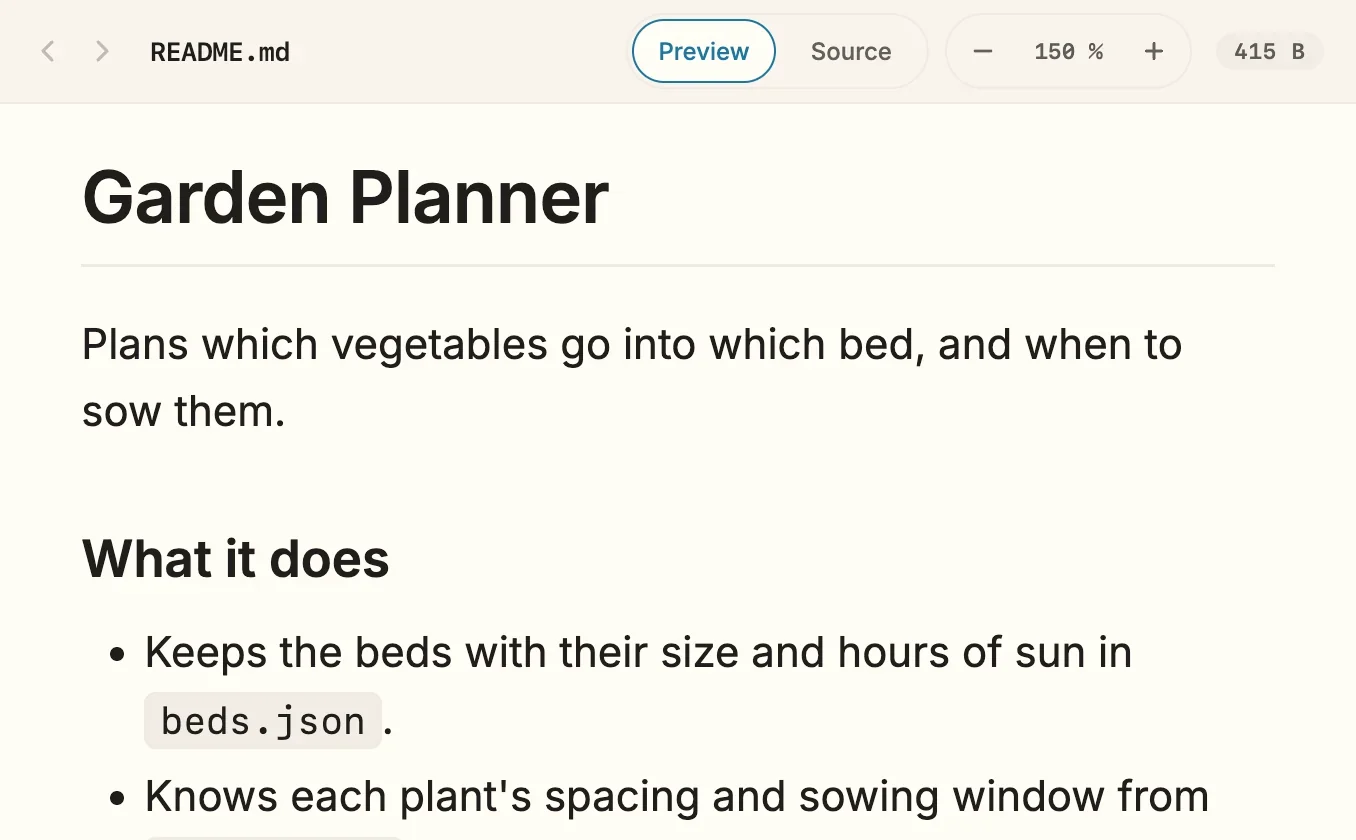
- Zoom in the Markdown preview. The preview has the same −, percentage and + group as the PDF and image previews, or Cmd/Ctrl with +, − and 0 while the preview has the focus. The whole document grows — text, images and tables — and every Markdown file opens at the size you chose last, after a restart too. The source view is not zoomed.
- Adding OpenAI on the first start works. A fresh profile already lists OpenAI · gpt-5-mini, still without a key. Adding exactly that model with your key in Settings › Models › Add model used to be refused with This combination is already in the list — and the key was kept anyway. Now the existing entry simply gets the key, and the dialog closes. A real duplicate is still refused, and the message names the entry it collides with.
- Approval cards lose a line nobody could read. A card for a change to an existing file listed an internal version token under the path, something like as of 203:1791464592385. It still ties your answer to the file version the model saw; it is just no longer printed.
- The mode menu stays inside the chat column. In the default layout its right side ran past the window edge, cutting descriptions and the link to the settings. Its descriptions wrap now.
- More room above the Skills catalog in Settings › Skills.
- Three more chapters in the manual: updating, troubleshooting, and a reference with the keyboard shortcuts, a glossary and where Snotra keeps its files.
1.18.2: the manual comes with the app
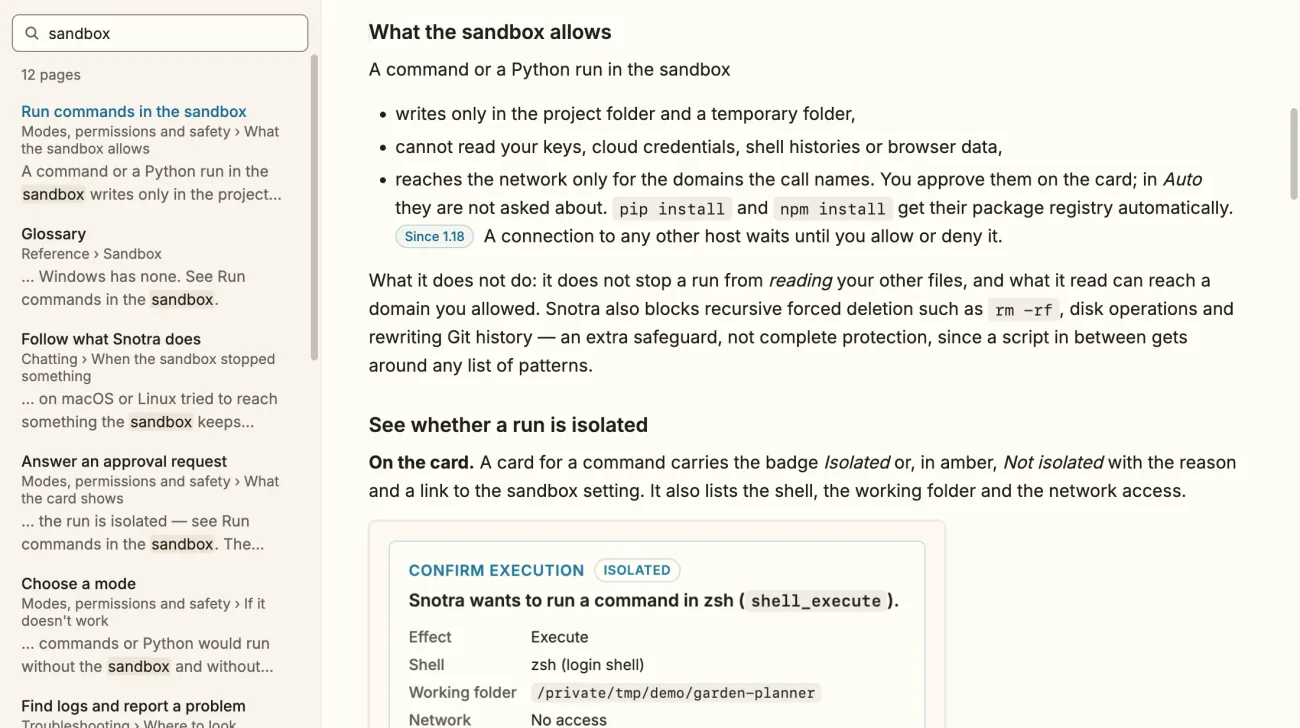
The manual from the last article now ships inside Snotra Agent. Help › Snotra User Manual, or F1, opens it in a window of its own. It is the copy that came with your version, so it describes what you have installed, it works without an internet connection, and it follows the language and the light or dark theme you chose for the app.
Search is part of it. Cmd/Ctrl with F puts the cursor in the field at the top of the chapter list. Results replace the chapters while you type: page title, chapter, and an excerpt with the match marked. ↑ and ↓ choose, Enter opens the page at the section that matched, Esc brings the chapters back. The index is built in the app from the pages themselves, so nothing leaves your machine.
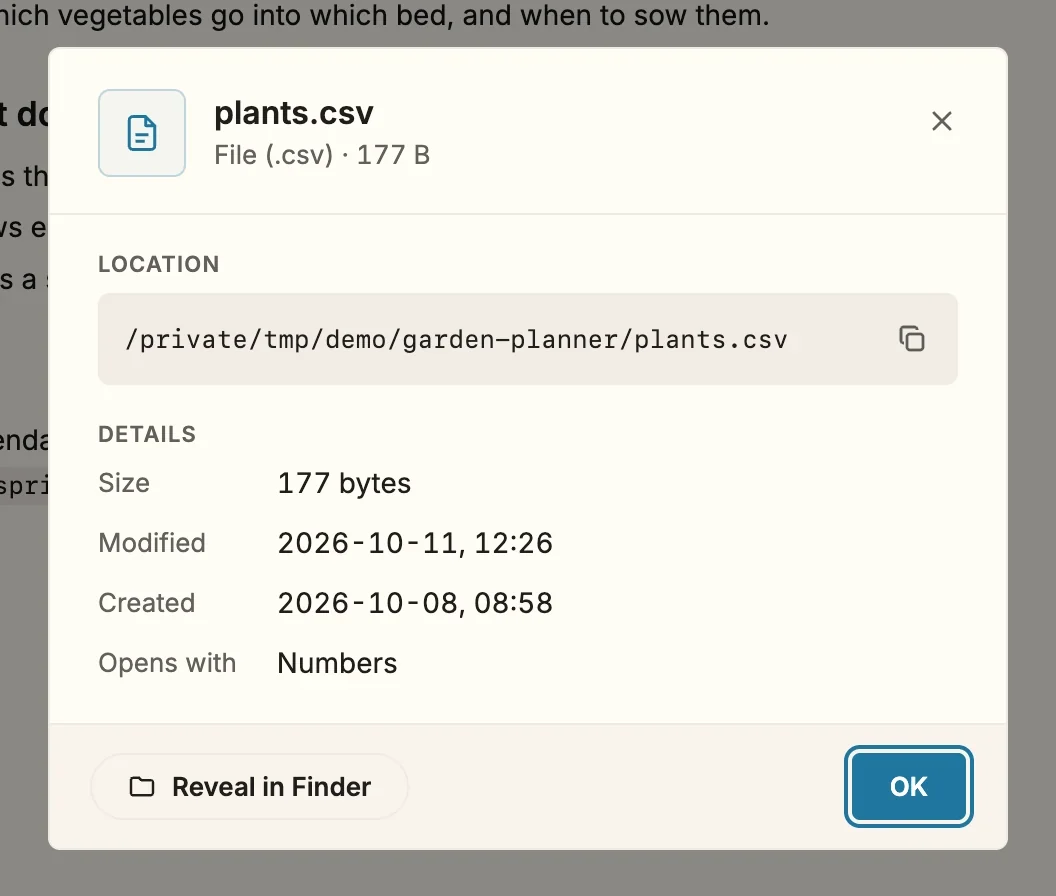
- Information about a file has its own dialog. Information in the context menu of the file tree used to open a plain system alert. Now a dialog of the app shows the name with type and size, the full path with a button that copies it, the exact size, the dates and the app that Open would use. Reveal in Finder (or the wording of your platform) is at the bottom. For a folder it counts the entries directly inside.
- The welcome page opens the column it leads to. A folder under recently opened brings back the file tree if you had hidden the sidebar, and a chip under quick start opens the chat if it was hidden, instead of filling an input you cannot see.
1.19.0: a ? next to the settings
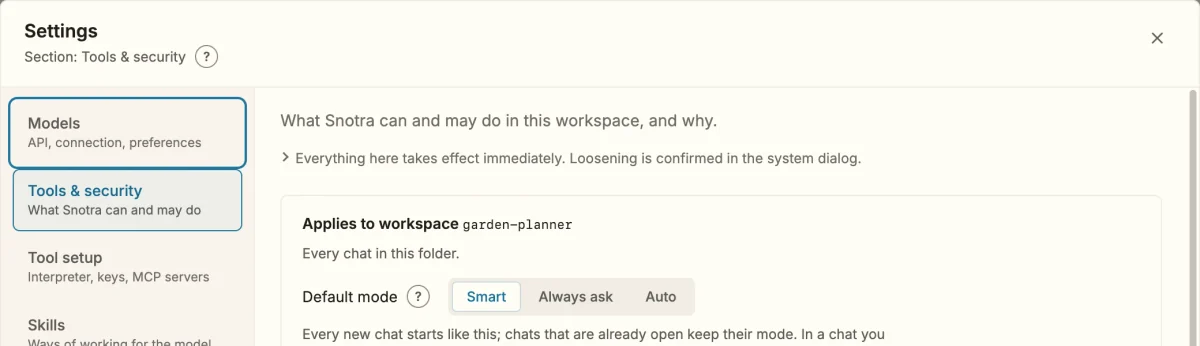
Next to the headings in the settings there is now a small ?. It opens the manual at the page and section about that setting, for example Default mode under Tools & security. The question mark in the header of the dialog follows the section you are in. If the help window is already open, a second ? turns it to its page instead of opening another one. A test in the app’s repository fails when a link points at a page or heading that no longer exists, so renaming a heading in the manual cannot silently break one.
A small fix in the same release: in the manual’s search, ↓ after typing chooses among the fresh results, not the ones that were on screen a moment before.
1.20.0: decided cards fold, skills show up, dictation goes live
Answered approval cards fold to one line
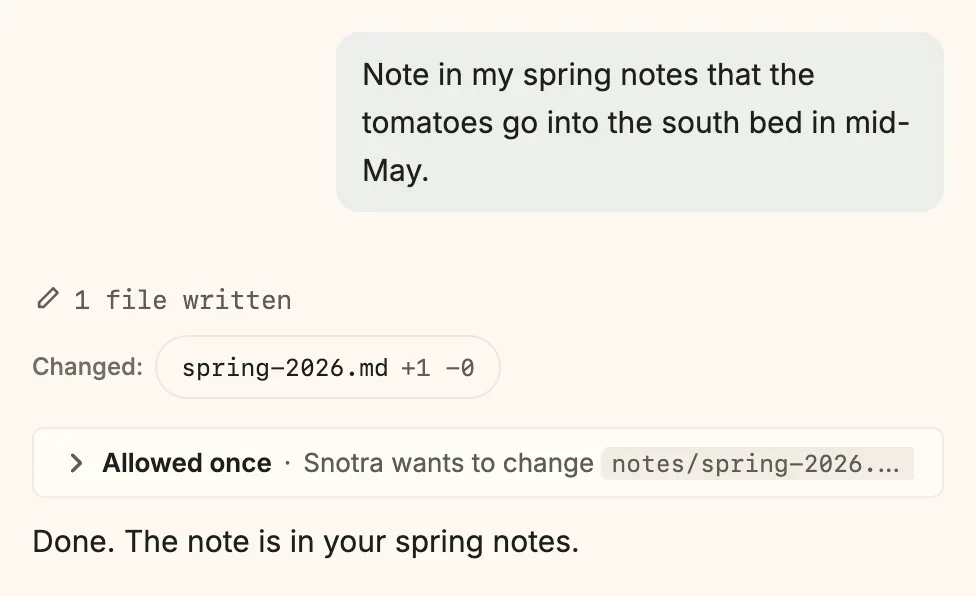
An approval card used to keep its full size after you had answered it, so a long chat was a stack of them. A card you allowed, denied, or that expired now folds to one line: your decision and the question it answered, for example Allowed once · Snotra wants to change notes/spring-2026.md. A click on the line opens the full card again, with the details, the preview and what your decision meant; a second click folds it. This holds for the cards about file changes, commands, files outside the folder and the sandbox. The decision is still read out by screen readers, and the card stays folded or open when you change the language.
A pill that shows what the chat can use
In the chat bar, next to the model and the mode, a third pill counts the skills that are on in this chat: 3 skills, or No skills. Click it, and you see the whole picture:
- Skills. Every skill with its state and where it comes from: system, your own, or the open folder. A skill you called with
/nameis marked this chat only. - Tools. What is missing comes first, with the reason — shell commands are switched off, no search service key. Switch on or Set up opens the setting that changes it. What is on is summed up by group in one line.
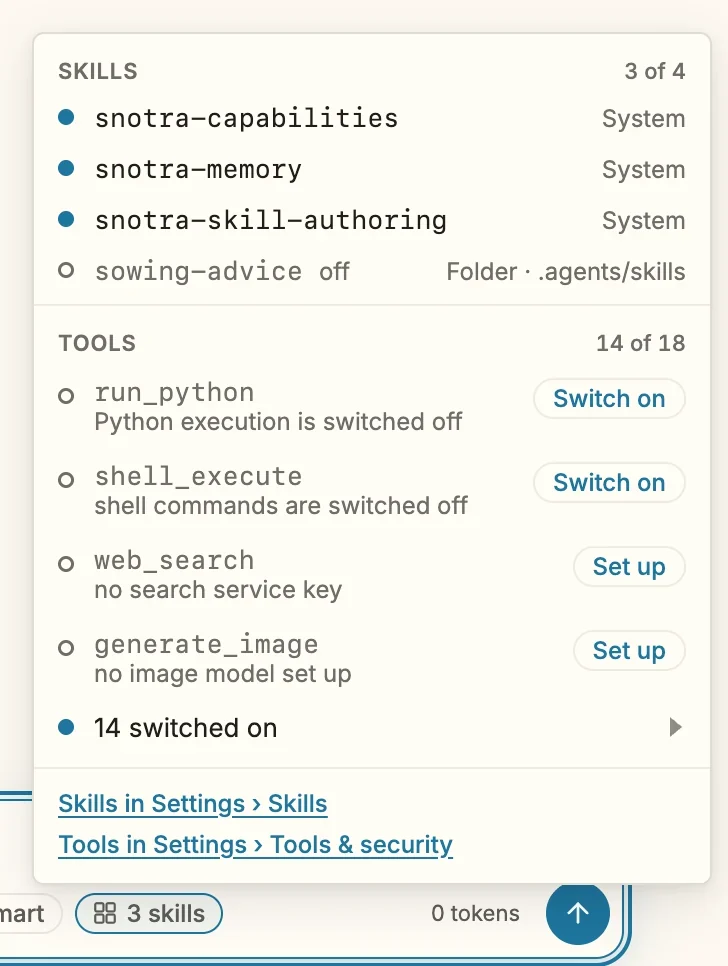
The model reads the same list through a new tool, get_configuration. It sees which skills are on, with their descriptions but never their instructions, and which tools are on or off with the reason. So when something fails, or a capability seems to be missing, it can tell you that a skill would fit but is switched off, and where to switch it on, instead of guessing. The tool only reads: it cannot change anything. Whether a tool is offered is decided in one place in the app, which is why the pill and the model can no longer disagree.
Dictation appears while you speak
Voice input no longer records first and transcribes at the end. The text now appears in the input where the caret is, grey and slanted, as you speak. A sentence is settled at your first pause, and from then on you can correct it while you go on speaking; only the sentence you are still in is protected from edits. A level next to the microphone shows that Snotra hears you, and a clock shows how long it has been running. Cmd/Ctrl with D starts and stops a recording, also under Edit › Voice Input. While you dictate, the model and mode pills and the token counter make room.
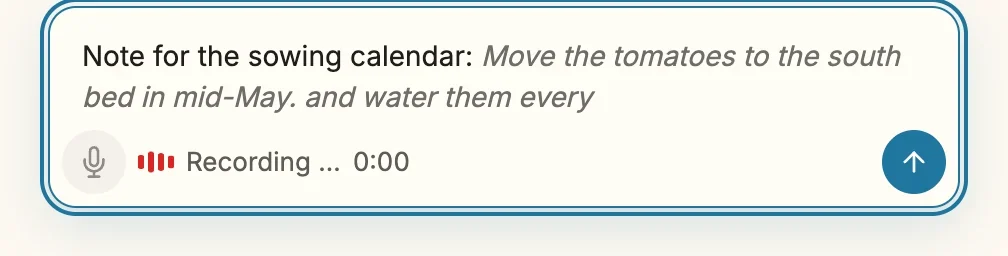
Two things to know. Dictation uses OpenAI’s speech recognition, so it needs an OpenAI key under Settings › Models, even when the chat runs on another provider, and OpenAI bills it by the minute. Without a key the microphone does not even switch on. And if the live connection fails, say on a network that blocks it, the recording goes on without live text and Whisper transcribes what the live session missed when you stop. A recording ends by itself after five minutes, and the line next to the microphone warns you half a minute before.
Getting it
Snotra checks for a newer version at startup and walks you through the update, one confirmed step at a time. Otherwise, download it for macOS, Windows or Linux. Every release has its notes on GitHub, and the Discussions are open for anything that doesn't work the way this article says.