
blog · Artikel auf Englisch
Auto mode: what changes when your AI agent stops asking
Snotra asks before every change, and in a long task that is a lot of asking. Auto drops the questions. What it switches off, what keeps working, and why it is a decision for one chat, not for the app.
The approval card is the heart of Snotra. Before the agent changes a file, runs a command or reaches out to a web page, it stops and shows you what it is about to do. For a single edit that is exactly right. For a refactoring across twenty files, it means twenty cards, and somewhere around the eighth you stop reading them and just click. A card nobody reads protects nobody.
That is what Auto is for. It is the third permission mode in the chat, and it asks nothing. This post is about what that means precisely, because “no questions” is easy to misread as “no rules”.
Where it lives
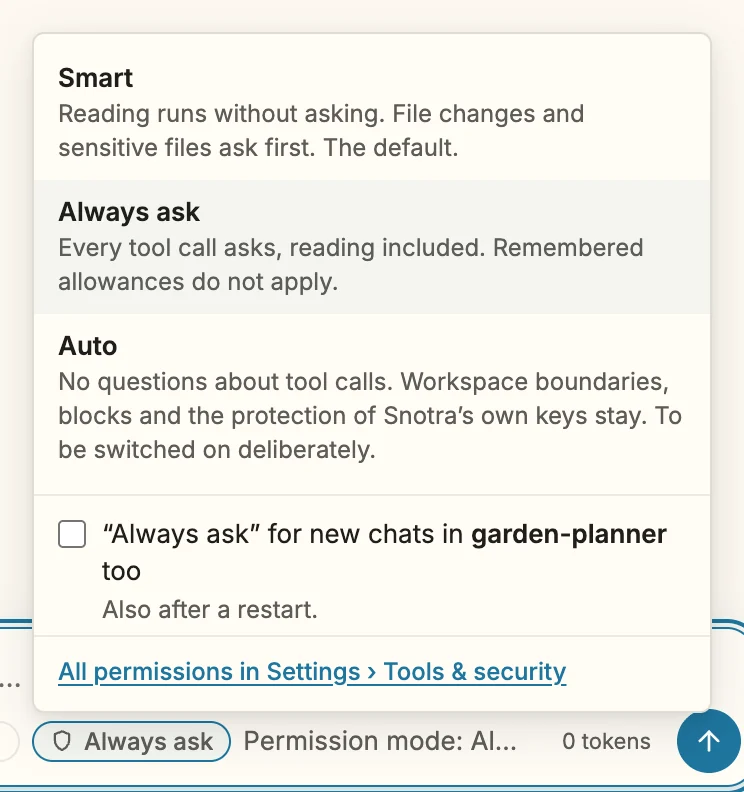
Every chat has a mode, and the chat bar shows it in a pill next to the model. A click opens the menu with the three modes:
- Smart, the default: reading inside the open folder runs, everything else asks first.
- Always ask: every tool call asks, reading included, and remembered allowances do not apply.
- Auto: no questions about tool calls.
What Auto switches off
Snotra sorts every tool by what it can do, and the mode decides, class by class, whether a call runs or waits for you:
| Smart | Always ask | Auto | |
|---|---|---|---|
| Read a file | Runs | Asks | Runs |
| Read a sensitive file | Asks | Asks | Runs |
| Change or overwrite a file | Asks | Asks | Runs |
| Run a command or Python | Asks | Asks | Runs |
| Web, MCP and other outside services | Asks | Asks | Runs |
The second row deserves a plain sentence. In Smart, a file that looks like it holds credentials — .env, a private key, a token in the text — is held back until you approve it, and the card names the provider its content would go to. In Auto that question is gone too: sensitive content from your folder can reach the model provider without you seeing it first. The dialog that switches Auto on says so in those words, and so does this article, because it is the one consequence people tend to overlook.
What keeps working
Auto removes questions. It does not remove limits. Everything below holds in every mode, Auto included:
- The folder boundary. The agent works in the folder you opened. When it wants to read or write anything outside it, a card asks — in Auto as well, since that widens what it can reach. Some places are never offered at all: your home folder as a whole, the root of a disk, Snotra’s own storage.
- Your blocks. A rule that blocks something beats every permission, in every mode. If a tool or a path is blocked, Auto cannot unblock it.
- Tools that are off stay off. Running commands and Python is switched off until you switch it on in the settings. Auto lets a tool run without asking; it does not hand the agent a tool it doesn’t have.
- The sandbox, on macOS and Linux. A command still writes only inside the folder and a temporary folder, cannot read keys, cloud credentials or browser data, and reaches only the hosts the call names. Those named hosts go through without a card in Auto. A host it was not given, or a write the sandbox refused, still brings up a card — those cards carry the badge Also in Auto.
- A short list of hard blocks. Recursive force-delete, disk operations and rewriting Git history are blocked even in Auto. To be honest about it: that list is a second line of defence, not a guarantee. A command can be wrapped in a script or an interpreter the list never sees.
- Snotra’s own keys and controls. Your provider keys and the file that holds your permissions are out of the agent’s reach. Nothing the model reads or writes can loosen a rule.
- A way back for overwritten files. Before the agent overwrites a file, Snotra moves a copy of the old version to the system trash, and that does not depend on the mode.
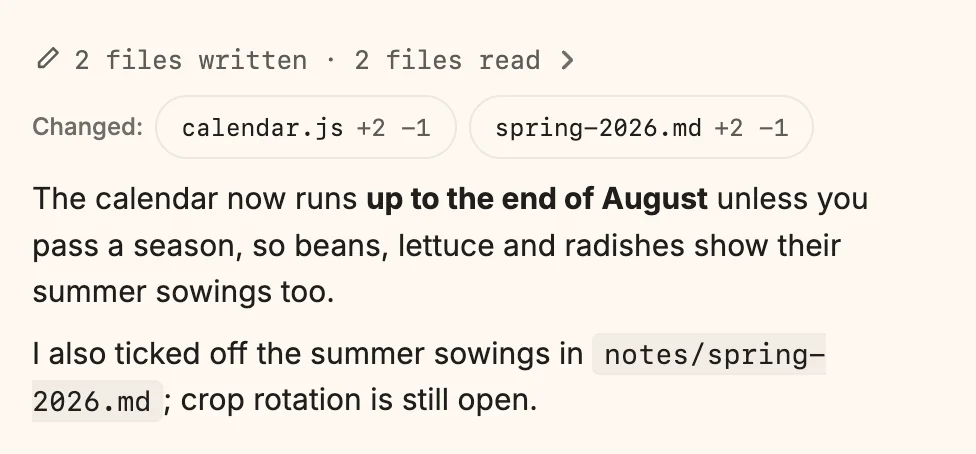
What none of this protects against is a bad change inside the folder. If the model rewrites the wrong function or deletes a paragraph it should have kept, Auto lets it, because that is the point. Snotra’s answer there is visibility after the fact: under each answer, the line Changed: lists every file the chat touched, with its added and removed lines, and a click shows the change.
Switching it on takes a system dialog
Going to Smart or Always ask happens with one click; being more careful needs no confirmation. Going to Auto opens a dialog of the operating system, not of the app: Switch on Auto (full access)?, with what that means spelled out and Cancel next to Switch on Auto.
The dialog is a native one on purpose. The chat window renders text from the model, from your files and from web pages, and some of that text will be written to steer an agent. A permission that could be granted from inside that window could be talked into existence. So the decision sits in Snotra’s main process, and the window only gets to ask for it.
For the same reason, Auto needs the system’s encrypted storage, where Snotra signs the file with your permissions so it cannot be edited behind its back. Where there is none — a Linux desktop without a keyring, for instance — Auto is shown as unavailable with that reason, and Smart and Always ask work as usual.
Auto belongs to one chat
The mode is stored with the chat, not with the app. That has three consequences, and all three are deliberate:
- A new chat starts in Smart. Switching one chat to Auto for a task says nothing about the next one.
- Auto doesn’t survive a restart on its own. When Snotra starts and restores the last chat, an Auto chat comes back in Smart. Open it from the history yourself, and it is back in Auto — you chose that chat, and the mode came from your earlier confirmation.
- The pill is always there. You can see at any moment which mode a chat runs in, and one click takes it back to Smart. A card that is already waiting is re-evaluated under the new mode; a call that is already running is not undone.
The reasoning behind it: Auto switched on for one long task and then forgotten is the most likely way to end up running without questions in a place you never meant to.
A folder you trust completely
That rule gets in the way for a folder you trust completely — your own notes, a scratch project under Git — where you would switch to Auto in nearly every chat. For those, a folder can carry a default mode of its own. Switch a chat to Auto, open the menu again and tick “Auto” for new chats in ‹folder› too, or choose it under Default mode at the top of Settings › Tools & security.
Because that applies to every future chat in the folder, across restarts, it gets a system dialog of its own that names the folder. The default is stored with your permissions, outside the folder, so a repository you just cloned cannot declare itself Auto. And there is no global default on purpose: it would quietly apply to the next folder you open, including one you don’t know yet.
It works the other way round too. A folder with content you want to watch closely can default to Always ask. That only tightens, so it needs no confirmation at all.
When there is no sandbox
On Windows there is no sandbox yet, and on macOS or Linux you can switch it off for one folder when it gets in the way. In either case a command in Auto would run with your full rights and without a card. Snotra does not stop you from doing that, but it doesn’t let you forget it either: the pill then reads Auto · not isolated, in amber, and its menu names the tools and the reason. Amber rather than red, because it is a risk you accepted or cannot avoid, not an error.
No model decides for you
Some agents put a classifier between “ask” and “don’t ask”: a model that looks at each call and judges whether it is safe enough to skip the question. Snotra doesn’t do that, in any mode. Smart is a fixed set of rules you can read, and Auto is exactly what its name says. I prefer it that way. A rule that fails, fails the same way every time, and you can find out why; a judgement that fails does so where nobody looked.
The flip side is that Auto is only as safe as the folder, the task and the model you use it with. It works well for a folder under version control with a clean working tree, a task of many small, similar steps, and a model you have watched do that kind of work before. It is the wrong choice for a folder with credentials or other people’s personal data, for a repository you haven’t read, and for anything where the model reads untrusted text, such as web pages or issues from strangers, and then acts on it.
More
The manual has the steps, in English and German: Choose a mode and See what Snotra changed. The full rules, including what is deliberately not built, are in the security concept in the repository. If Auto behaves differently from what this article says, the Discussions are the place to tell me.